> ## Documentation Index
> Fetch the complete documentation index at: https://docs.deductive.ai/llms.txt
> Use this file to discover all available pages before exploring further.
# Connect Slack
> Install the Deductive Slack app at the workspace level. One-time, ~5 minutes. After this your team can wire their own channels.
The Slack app gets installed once at the workspace level. After that, every member of your team can `/invite @Deductive` into channels and configure per-channel alert routing without admin involvement. Your job is the install.
## Step 1: Install the Slack app
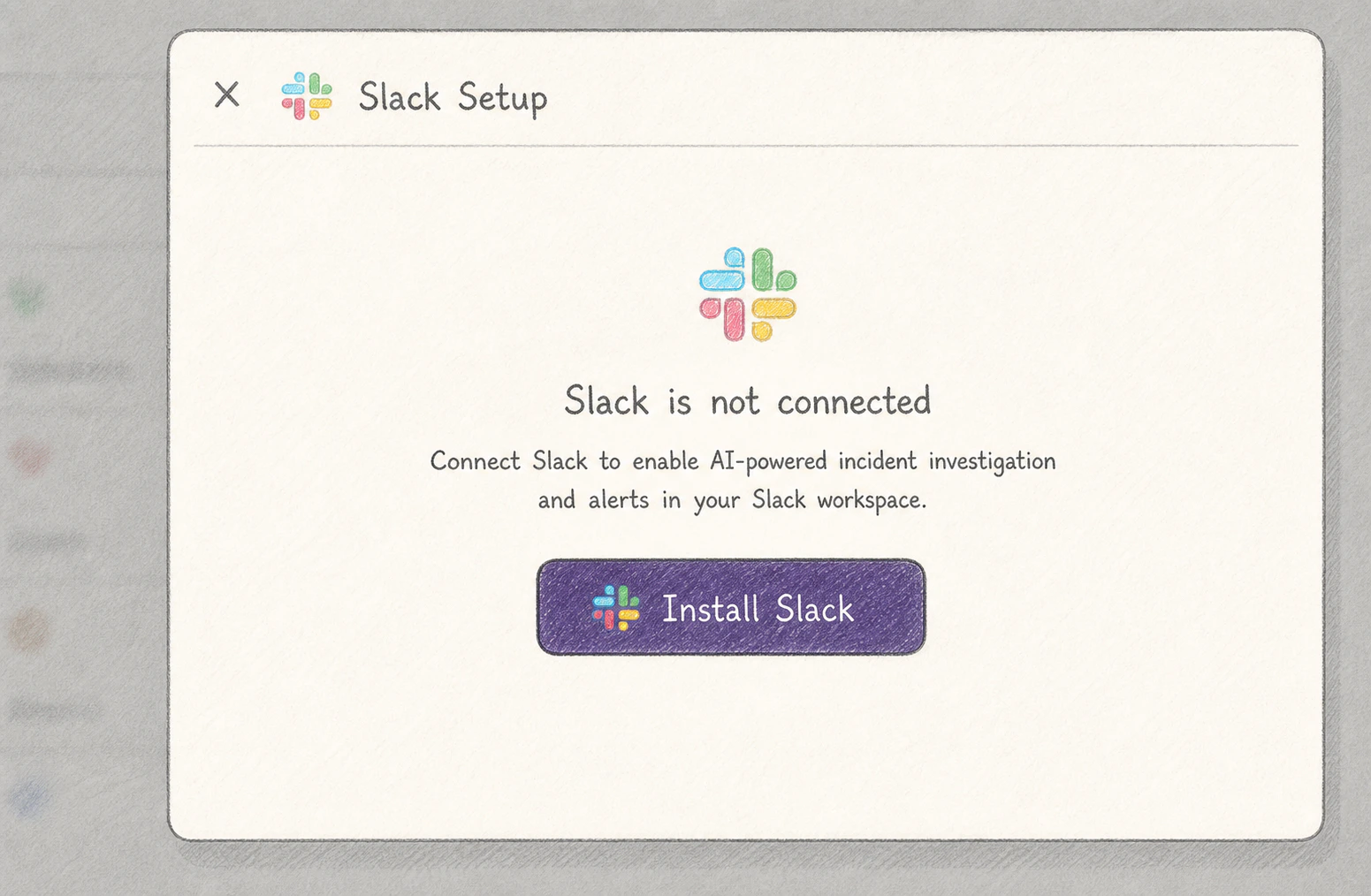
1. In Deductive, open **Integrations → Slack**.
2. Click **Install Slack app**. You'll be redirected to Slack's standard app authorization screen.
3. Pick the Slack workspace where your team's alerts post. (If you administer multiple workspaces, double-check.)
4. Slack shows you the requested OAuth scopes. Read messages from public channels the bot is invited to, post messages, read alert metadata. Click **Allow**.
5. You'll be redirected back to Deductive. The Slack connector flips to a green dot.
 Slack requires a workspace admin to authorize new apps unless your workspace allows non-admin installs. If you hit a "must be approved by an admin" wall, request approval through Slack's flow and resume here once it's granted.
## Step 2: Verify the bot is in your workspace
Open Slack. Search for `@Deductive` in the people sidebar. You should see the bot listed as a workspace member. Send it a quick DM (`hi` is enough) and you should get a "👋 ready" reply within a few seconds.
Slack requires a workspace admin to authorize new apps unless your workspace allows non-admin installs. If you hit a "must be approved by an admin" wall, request approval through Slack's flow and resume here once it's granted.
## Step 2: Verify the bot is in your workspace
Open Slack. Search for `@Deductive` in the people sidebar. You should see the bot listed as a workspace member. Send it a quick DM (`hi` is enough) and you should get a "👋 ready" reply within a few seconds.
 ## Step 3: Invite the bot to one channel as a smoke test
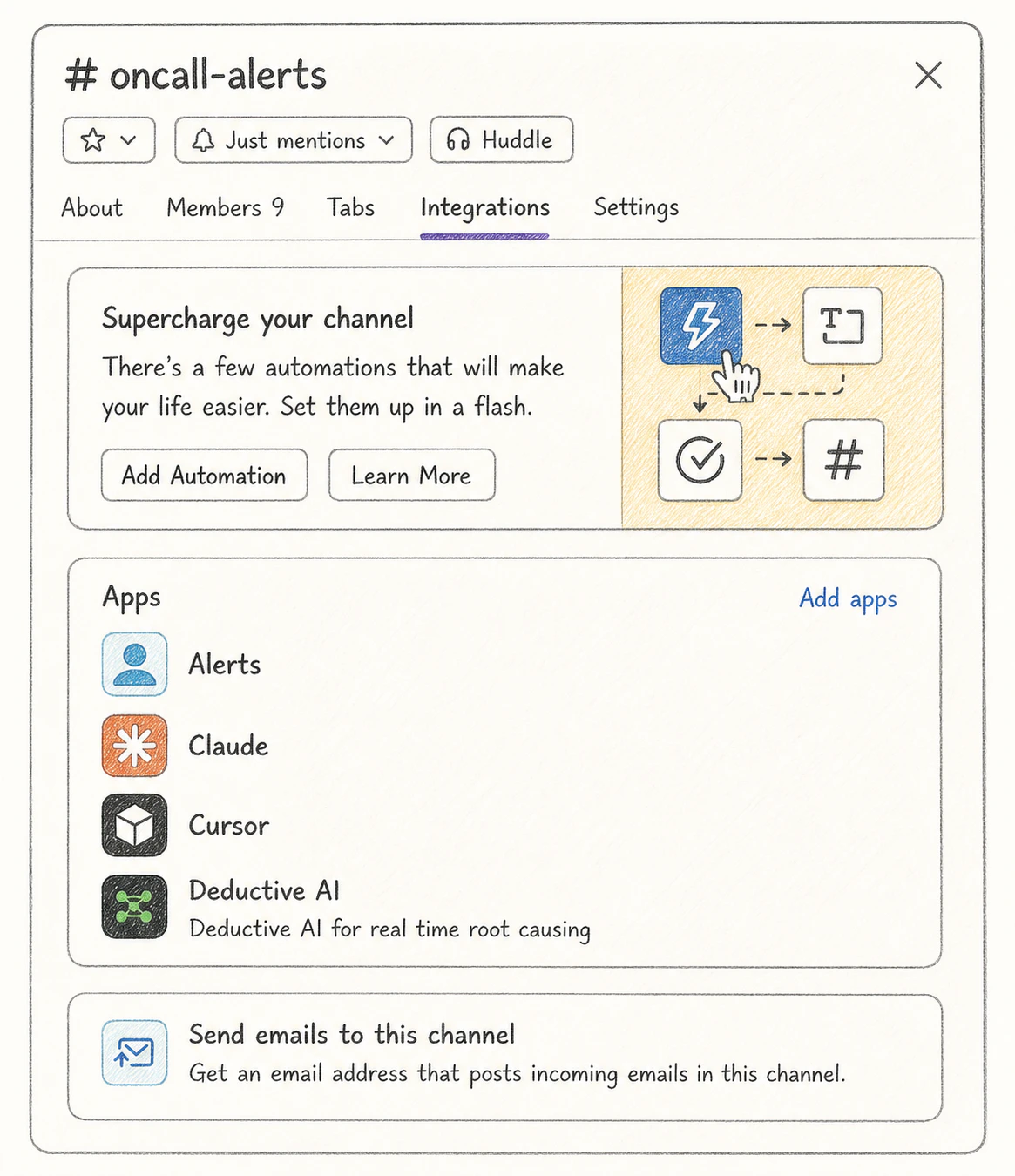
You don't need to invite the bot to every alert channel right now. That's a per-team thing your members will do themselves. But it's worth proving the channel-level integration works once.
1. Pick any channel. Your own DM, a sandbox channel, or your real `#alerts` channel.
2. `/invite @Deductive`
3. Type `@Deductive what can you do?` in the channel. The bot should reply with a short capabilities summary.
If you get a reply, your team is now unblocked.
## Step 4: Hand off to the team
The rest of Slack setup is per-channel and per-team. Your team members can do it themselves without admin involvement. Point them at:
* [Use Deductive in Slack](/users/in-slack). Daily Slack use patterns.
* [Wire alerts to auto-investigate](/users/auto-alerts). Channel filters, custom regex, triage mode.
You don't need to pre-configure any of this. Different teams will want different alert routing, and the user docs walk them through it.
## What just happened
The Slack workspace knows the Deductive bot, OAuth is in place, and the bot can be invited into channels. Per-channel alert routing, custom regex patterns, triage-mode toggles. All of that is user-track work, not admin-track. You're out of the loop.
## Try this next
Confirm the workspace is genuinely ready before sharing user docs with your team.
## Step 3: Invite the bot to one channel as a smoke test
You don't need to invite the bot to every alert channel right now. That's a per-team thing your members will do themselves. But it's worth proving the channel-level integration works once.
1. Pick any channel. Your own DM, a sandbox channel, or your real `#alerts` channel.
2. `/invite @Deductive`
3. Type `@Deductive what can you do?` in the channel. The bot should reply with a short capabilities summary.
If you get a reply, your team is now unblocked.
## Step 4: Hand off to the team
The rest of Slack setup is per-channel and per-team. Your team members can do it themselves without admin involvement. Point them at:
* [Use Deductive in Slack](/users/in-slack). Daily Slack use patterns.
* [Wire alerts to auto-investigate](/users/auto-alerts). Channel filters, custom regex, triage mode.
You don't need to pre-configure any of this. Different teams will want different alert routing, and the user docs walk them through it.
## What just happened
The Slack workspace knows the Deductive bot, OAuth is in place, and the bot can be invited into channels. Per-channel alert routing, custom regex patterns, triage-mode toggles. All of that is user-track work, not admin-track. You're out of the loop.
## Try this next
Confirm the workspace is genuinely ready before sharing user docs with your team.