

This page assumes the Slack workspace is already connected and the Deductive bot has been installed. If it hasn’t, point your admin at Admin setup → Connect Slack. That’s a one-time, workspace-wide thing.
What “wired up” means
You control three knobs: which alerts trigger, which channels they’re allowed to fire in, and how loudly Deductive responds.Step 1: Invite the bot to the channel
/invite @Deductive in every channel where alerts post. The bot has to be a member to read messages. Slack doesn’t expose channel posts to bots that aren’t invited, even with workspace-level permissions. This is the single most common reason “alerts don’t trigger anything”.
Step 2: Pick alert sources
Open Integrations → Slack → Settings. The popup lists every supported alert source with a toggle. Turn on the ones your team uses.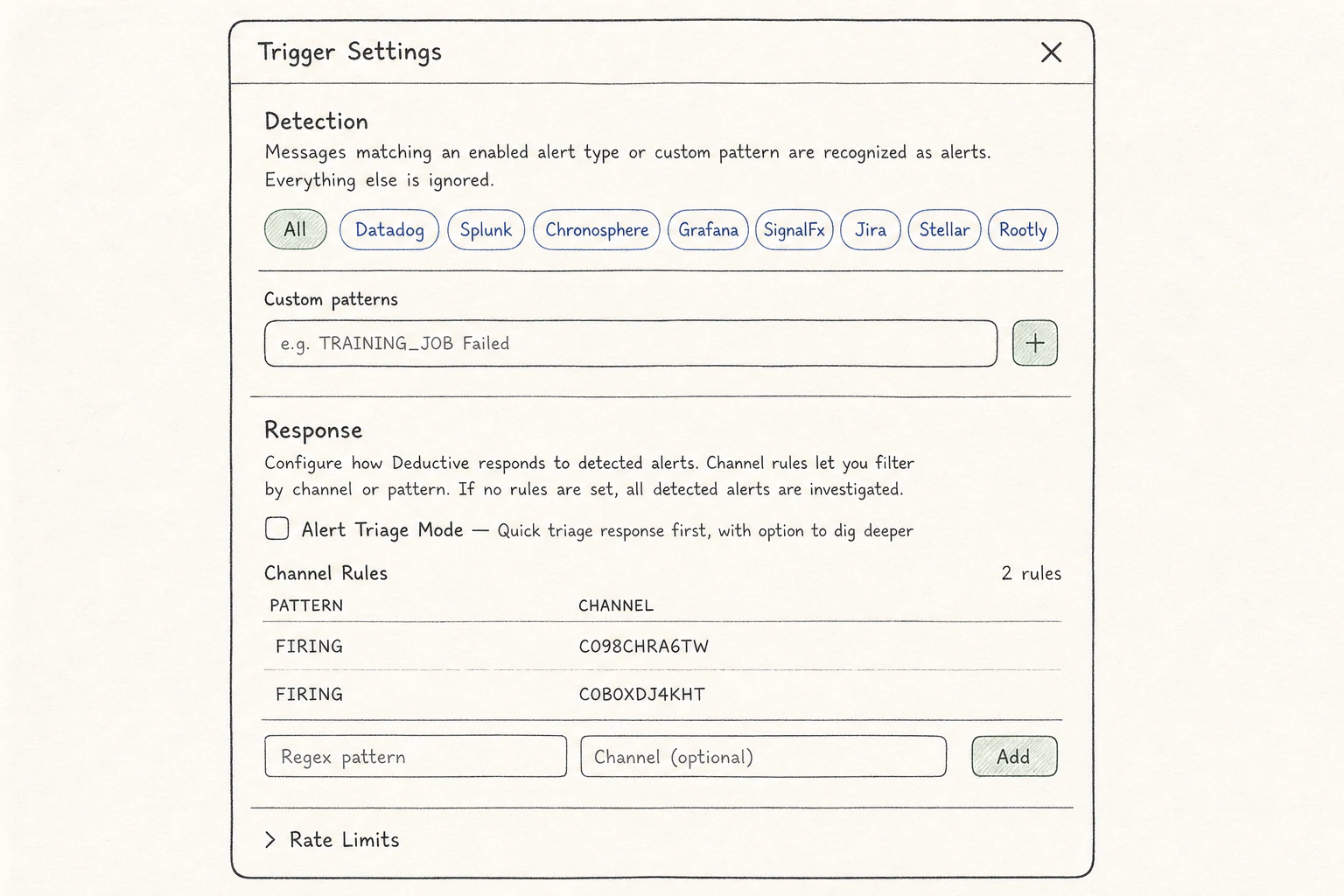
The Slack integration settings popup. Toggle the sources you use; the rest stay off so you don't pick up unrelated noise.
- Grafana (
*.grafana.netandgrafana.comURLs) - Datadog (alert URLs and API-formatted alerts)
- Splunk
- Sentry
- New Relic
- PagerDuty (incident URLs)
- Alertmanager / Prometheus
- Rollbar
- Sumo Logic
Step 3: Add custom patterns for in-house alerts
If your team has an internal alerting system or a non-default URL shape, add a custom pattern.- Click Custom patterns → Add pattern.
- Paste a regex that matches your alert message. Usually a unique URL fragment or a header line.
- Save. The pattern is live immediately for newly posted alerts.
Step 4: Scope which channels can trigger
By default, Deductive will react to matching alerts in any channel it’s a member of. For most teams that’s too aggressive. Use Channel filters to scope. Add a filter row for each channel where you want Deductive active:Step 5: Pick a response mode
Two modes:Full investigation (default)
Deductive runs the investigation, replies in the thread with the answer (root-cause hypothesis, evidence summary, recommended actions), and posts a canvas link. Best when:- The channel is real-incident-only and the on-call wants context immediately
- You want every alert to leave a paper trail an exec can read
Triage mode
Deductive runs the investigation but the visible reply is a one-liner (“triaged: looks like a transient redis blip, likely safe to ignore. Full investigation: [link]”). The full investigation is still there if anyone wants to dig in. Best when:- The channel is high-volume and you don’t want the bot lengthening every thread
- You’re piloting Deductive and don’t want it speaking authoritatively yet
Step 6: Test without paging anyone
You don’t have to wait for a real incident. Three ways: Forward an existing alert. Go to a known-good alert post in another channel and use Slack’s Forward action to send it to your test channel. Deductive will pick it up exactly as if it were freshly fired. Paste a bare alert URL. Most alert patterns match on URL shape alone. Paste a Grafana alert URL (e.g.https://your-org.grafana.net/alerting/grafana/abc123/view?orgId=1) into a channel where the bot is present. Deductive should react.
Run an investigation from the web app. If you just want to confirm Deductive can investigate the underlying question, ask it directly: “Investigate the most recent alert in #prod-alerts-payments.” That isolates the agent’s reasoning from the trigger plumbing.
Step 7: Tune as alerts come in
Once real alerts start flowing, two knobs tune most of the noise:- Trigger specificity. If Deductive is reacting to messages you don’t want, tighten the regex on the trigger or the channel filter.
- Triage threshold. If the channel is busy and you only want investigations on the high-confidence ones, switch the trigger to triage mode.
What just happened
Alerts that fire into your existing Slack channels now have a Deductive investigation attached automatically. The on-call sees evidence-backed context the moment they read the page, not after they’ve spent ten minutes context-switching. The same investigation is reachable from the web app. If the on-call wants to dig in, they click the canvas link, fork the decision tree, and continue from where Deductive left off.Try this next
Asking better questions
Prompt patterns that consistently produce sharp investigations. Useful when you reply in alert threads.