

- Ask is a fast lookup. A single-pass answer grounded in your workspace’s knowledge and recent telemetry. Typically tens of seconds, up to about a minute depending on the question. Best for “what is X”, “where do I find Y”, “when did Z last happen”.
- Investigate is a full reasoning run. Deductive forms competing hypotheses, gathers evidence in parallel across your connectors, and produces an answer with citations and a shareable canvas. Tens of seconds to a few minutes. Best for “why is X happening”, “what changed”, “is it the deploy or the dependency”.
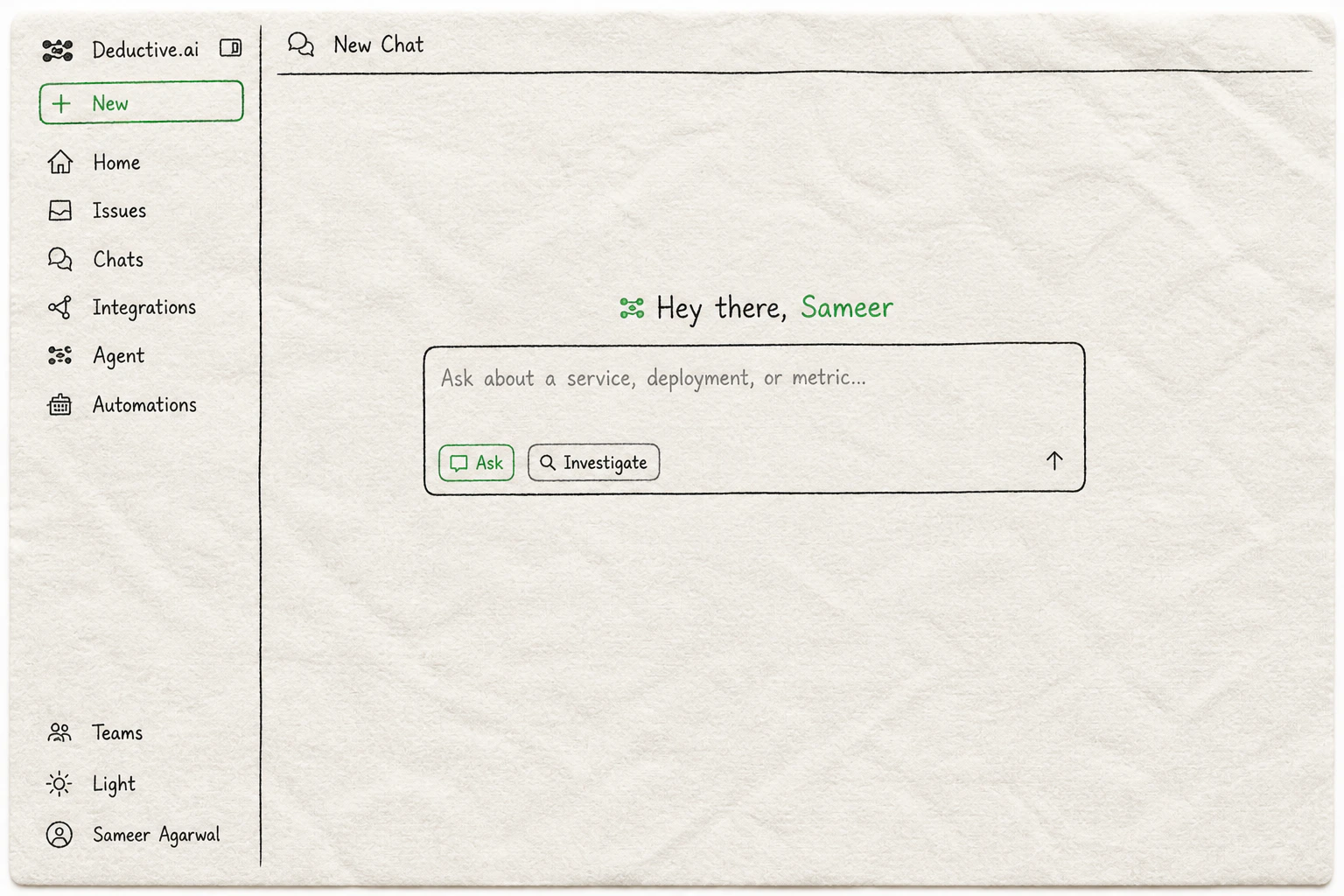
The Deductive home page. Type the question, then pick Ask for a quick answer or Investigate for a full reasoning run.
Step 1: Try Ask
Open your Deductive workspace home (app.deductive.ai or your Enterprise <company>.deductive.ai). In the chat input, type something narrow and click Ask:
- “When was the last deploy of
payments-api?” - “Which dashboards exist for
checkout?” - “What’s the on-call rotation for team Atlas this week?”
- “What does the metric
auth.token_verify_p95actually measure?”
Step 2: Try Investigate
Clear the input. Type something that’s actually hard. Click Investigate:- “What was the worst-looking thing in production yesterday between 11pm and 2am?”
- “Has anything weird happened with
[your service]in the past 24 hours?” - “Why did
payments-apip99 latency spike at 14:30?” - “Summarize this week’s incidents and group them by likely cause.”
Step 3: Read the answer
When the run finishes you get three things:- An answer with citations. Every claim has a citation chip. Click one to jump straight to the log line, metric query, commit, or dashboard panel it came from. Nothing is unsourced.
- A canvas. Every Investigate run produces one by default, docked alongside the chat. The canvas is a structured document with sections for root cause, timeline, evidence, and recommended actions. Edit it freely. Deductive treats your edits as ground truth and won’t overwrite them. The canvas is what most teams paste into a postmortem or share to Slack.
- A decision tree. Open it from the right-side panel if you want to see Deductive’s reasoning step by step. Reading the tree is a skill of its own and is covered on Continuous learning. For now, just know it’s there.
Step 4: Follow up
Don’t end the investigation. Try one of these as a reply in the same thread:- “Why did you rule out a config change?”
- “What if the regression actually started 24 hours earlier? Does the evidence still hold?”
- “Show me every PR that touched this code path in the last month.”
When to use which
What just happened
You exercised the two primary modes Deductive ships with. Most day-to-day work stays in Ask. The wins your team will talk about (the 2am incident solved in three minutes, the postmortem-ready canvas) come from Investigate. Knowing which to reach for is the difference between a tool that’s quick and a tool that’s transformative.Try this next
Continuous learning
Open the decision tree from the Investigate you just ran. See exactly how Deductive reasoned, click into any node, replay it.
Wire alerts to auto-investigate
Every alert that fires in your channels can trigger an Investigate automatically. The result lands in the alert thread.